SailIQ
Sign in

Help center for clubs

From your first click to your first regatta.

Step-by-step guides recorded on the real product. Pick a task and follow it until you see the result.

13
guides
4
chapters
7
product videos
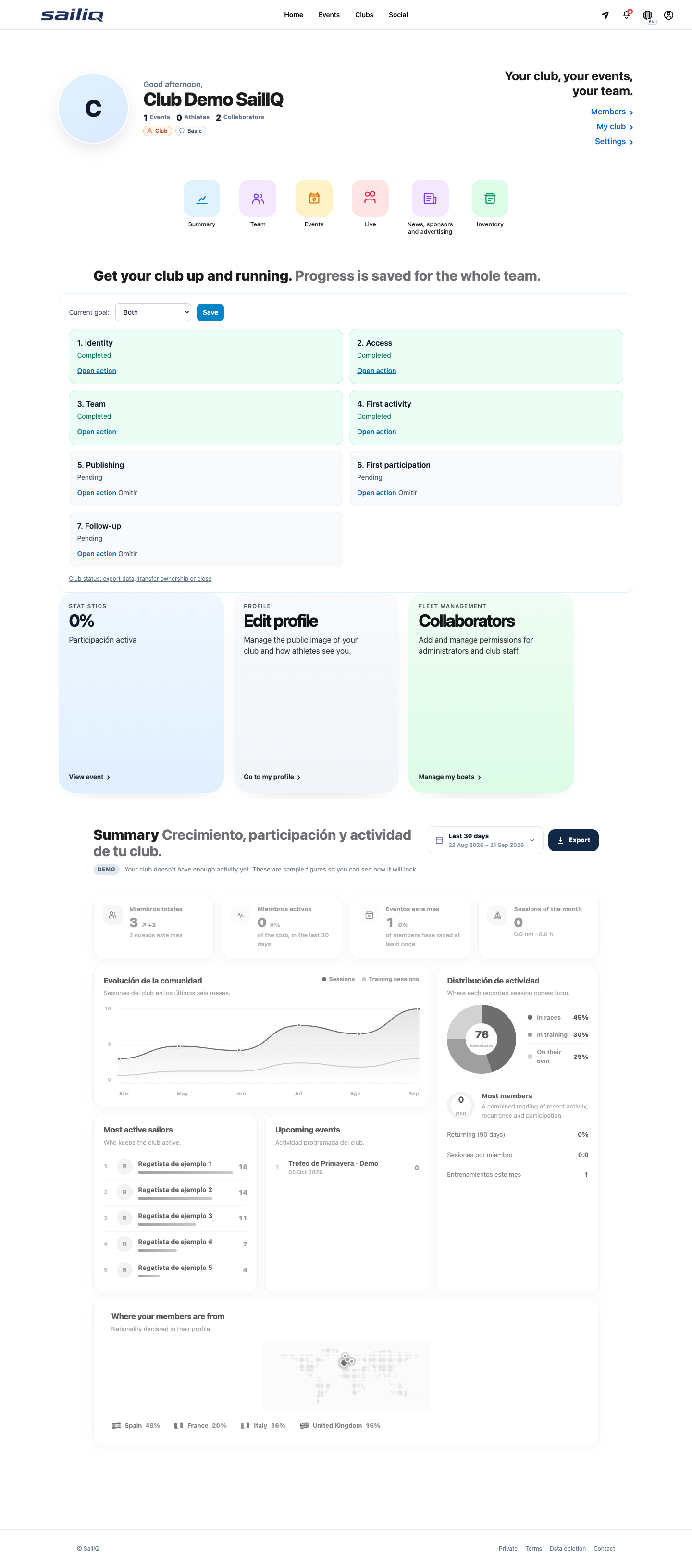
Club dashboard in SailIQ

What do you need to solve today?

You do not need to know SailIQ first. Start with the task in front of you and we will take you from the first click to the expected result.

The web is the reference. iOS and Android continue on the web when this task has no native editor.

1Start

01Start here

Club up and running

  1. Confirm the identity, location and time zone
  2. Choose the goal and resume the dashboard's next step
When it ends

The club retains its initial configuration and a shared next action.

Who it is for:
Owner and collaborators
If something does not show up:

If you cannot see the action, make sure you are signed in with the club account and have the required permission.
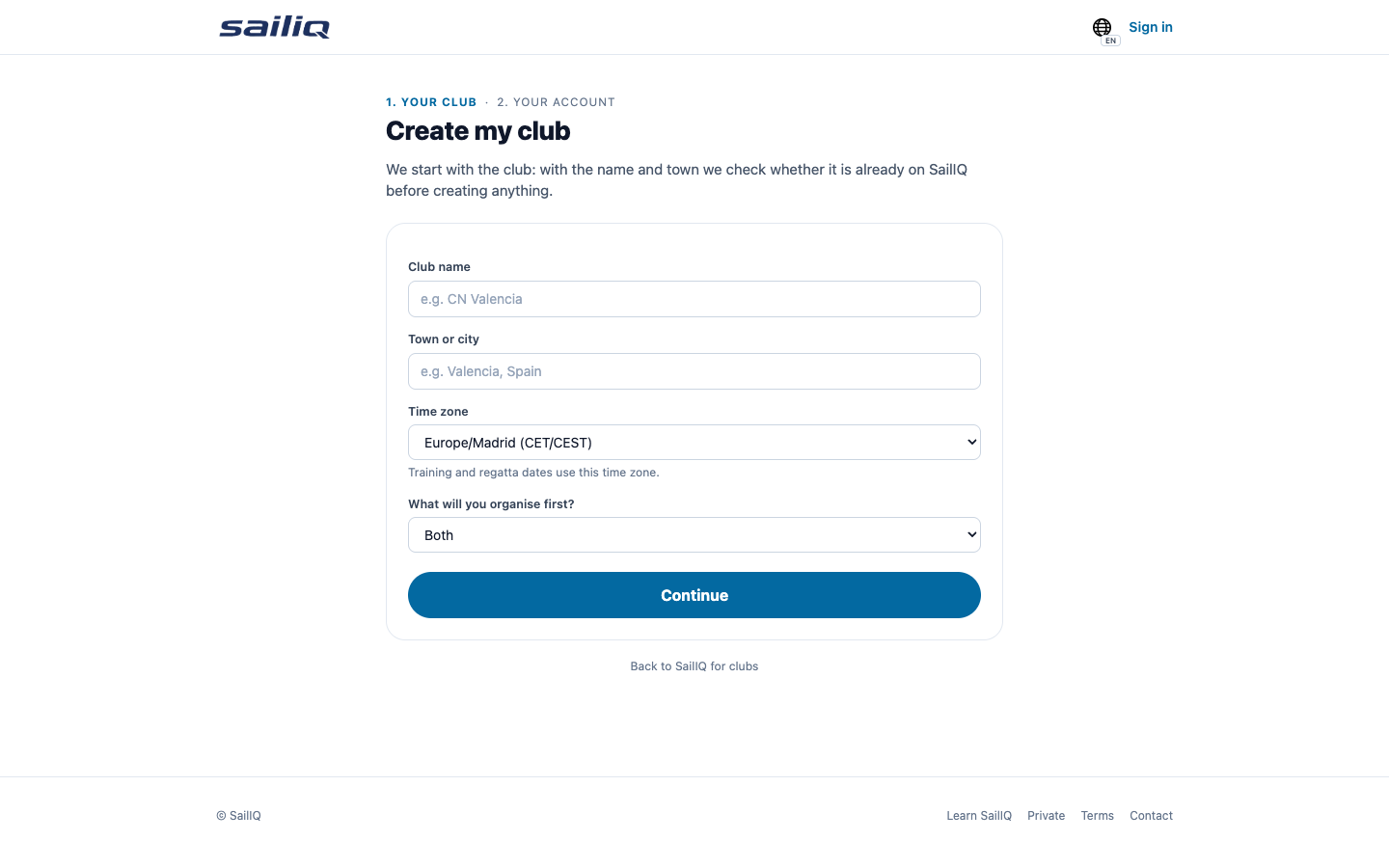
Create my club
Club up and running

02Team

My team

Invite only the person you need, wait for acceptance, and check the role before assigning work.

When it ends

Each person accesses with the accepted role; removing access does not delete their personal data.

Who it is for:
Owner and collaborators
If something does not show up:

An expired or revoked invitation does not grant access: send a new one from the team.

Manage my team

2Organise

03Day to day

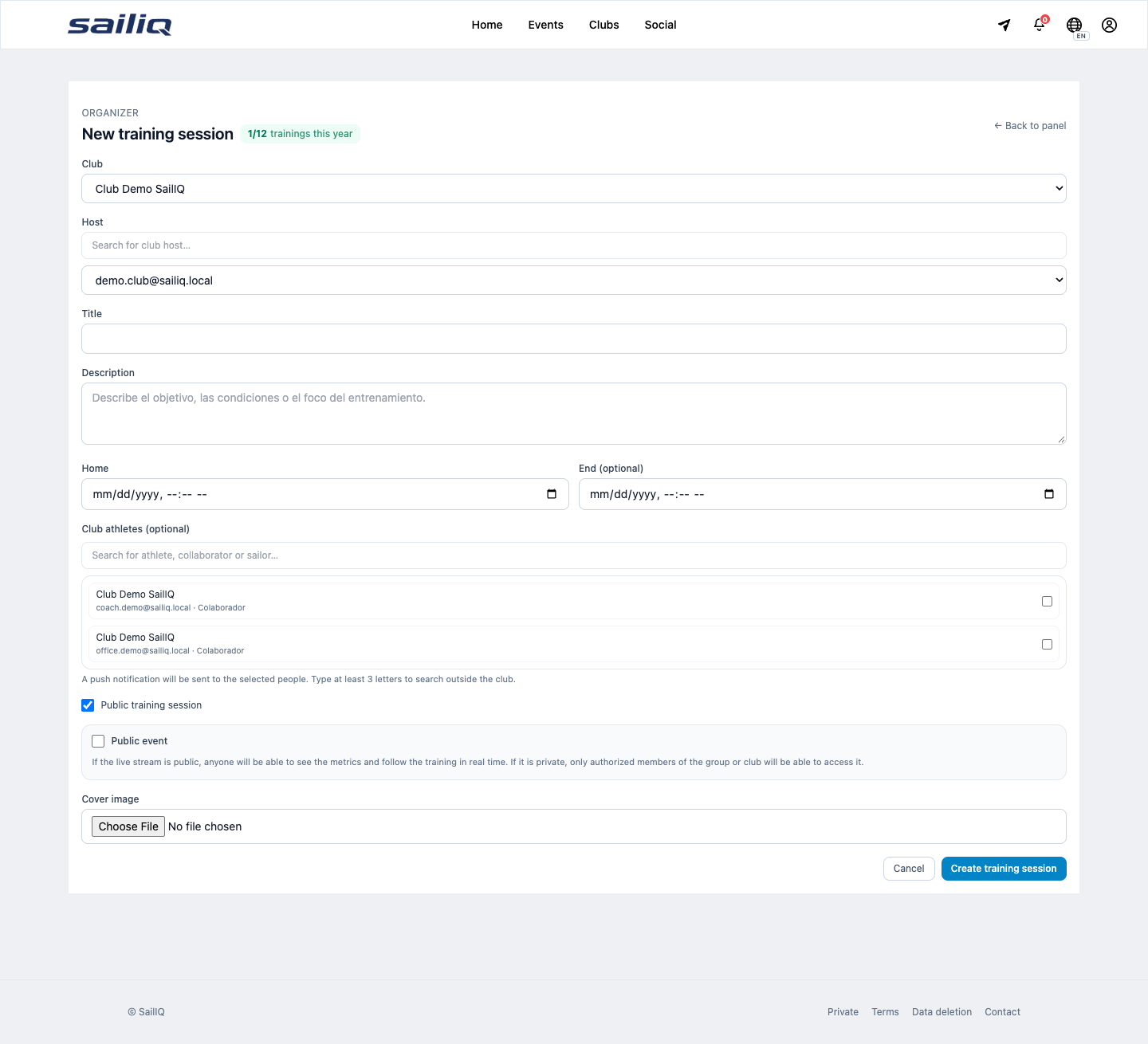
Training sessions

Create a training session, save its date and time zone, add participants, and review the resulting session.

When it ends

The person in charge can check a first activity and its follow-up.

Who it is for:
Sporting team
If something does not show up:

If participants are missing, first check their club access and device connectivity.

Create training session
Training sessions

04Compete

Regattas

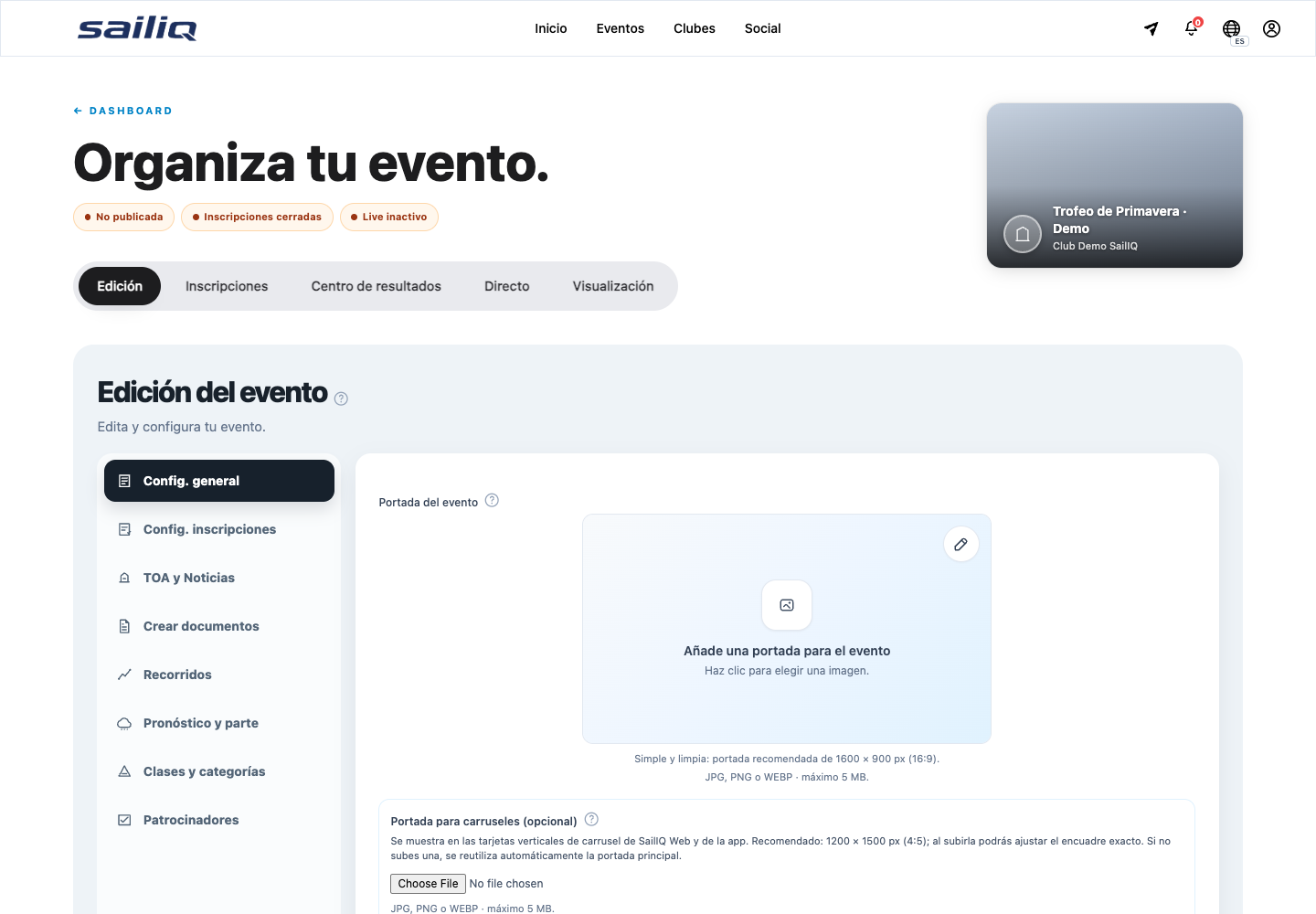
Start in draft, set dates and time zone, add classes, and review the participant view before publishing.

When it ends

The regatta is ready to be published to its intended audience.

Who it is for:
Organisation
If something does not show up:

Do not open paid registrations until payment is configured and verified in the authenticated dashboard.

Create regatta
Regattas

05Participation

Entries from start to finish

Open a regatta so participants can enter and the committee can approve with context.

  1. Publish the regatta and open entries
  2. The participant picks a class and sends their request
  3. Review it, accept it and publish the result when the race closes
When it ends

An approved entry appears in the participant list and its result shows in the standings.

Who it is for:
Organisation and participants
If something does not show up:

If a request doesn't appear, check the entry period, the chosen class and the pending status before creating another.

Create my club

06Share

Communication

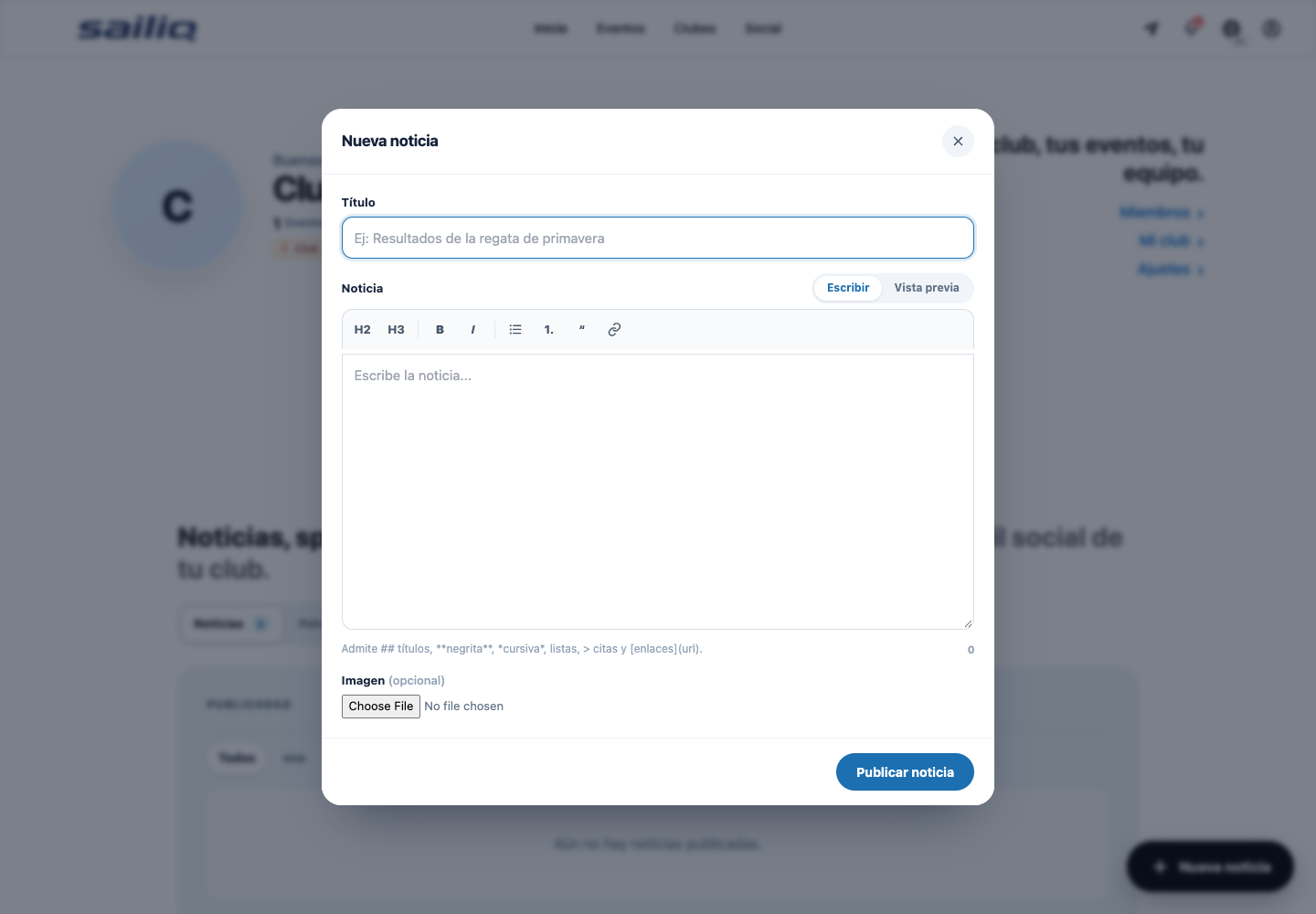
Complete the public profile, write a news item, and review the audience before sharing it.

When it ends

Published information reaches the intended audience without being confused with an invitation.

Who it is for:
Owner and collaborators
If something does not show up:

If a publication does not appear, check its visibility and that the club remains active.

Create a news item
Communication

3On the water

07Race office

Race office and scoring

Publish reliable results without relying on scattered spreadsheets.

Open the regatta, create the class and the race, set up position scoring, enter each finish and publish the provisional result.

When it ends

The race and overall results become visible to participants and the public.

Who it is for:
Committee and organisation
If something does not show up:

If you cannot see the action, make sure you are signed in with the club account and have the required permission.
Create my club

08On the water

Courses and live

Turn the course and the fleet's position into a public experience that's easy to understand.

  1. Create the start, marks and finish on the triangle course
  2. Assign it to the race, turn on Live and check the fleet moves on the map
When it ends

Participants and public tracking see the course and the fleet's updated positions.

Who it is for:
Committee and water team
If something does not show up:

If the map isn't receiving positions, check that the race is in progress and that the authorised device is transmitting to the right event.

Create my club

09Safety

Live quick guide

Read the state of the fleet and handle an alert without exposing device credentials.

  1. Pick the club, read the map and feature a LIVE training
  2. Open Alerts to locate an SOS, and use Devices or Zones to manage safety
When it ends

The team can tell what is transmitting, which training is featured and which alert needs attention.

Who it is for:
Club organisation and collaborators
Availability:
Web for club management; authorised transmitters can be an app, a watch or a beacon.
If something does not show up:

If you see no positions, check the selected club, the transmitter's connection and that the training is still LIVE.

Open Live

4Manage

10Learn

Analysis

Open the dashboard after an activity and distinguish recorded data from an activity with no data.

When it ends

The team interprets reports without treating missing data as zero activity.

Who it is for:
Owner, collaborators and sporting team
If something does not show up:

If the report is empty, confirm the activity was completed and that you are viewing the correct club.

View the club dashboard
Analysis

11Coordinate

Club operations

  1. Use the dashboard to find activities, team and routes
  2. Open each tool from its contextual action
When it ends

Operational tasks are located by platform without promising unavailable parity.

Who it is for:
Owner and collaborators
If something does not show up:

If a tool is not available in the app, continue on the web from the task link.

Open operations
Club operations

12Track

Plan and payments

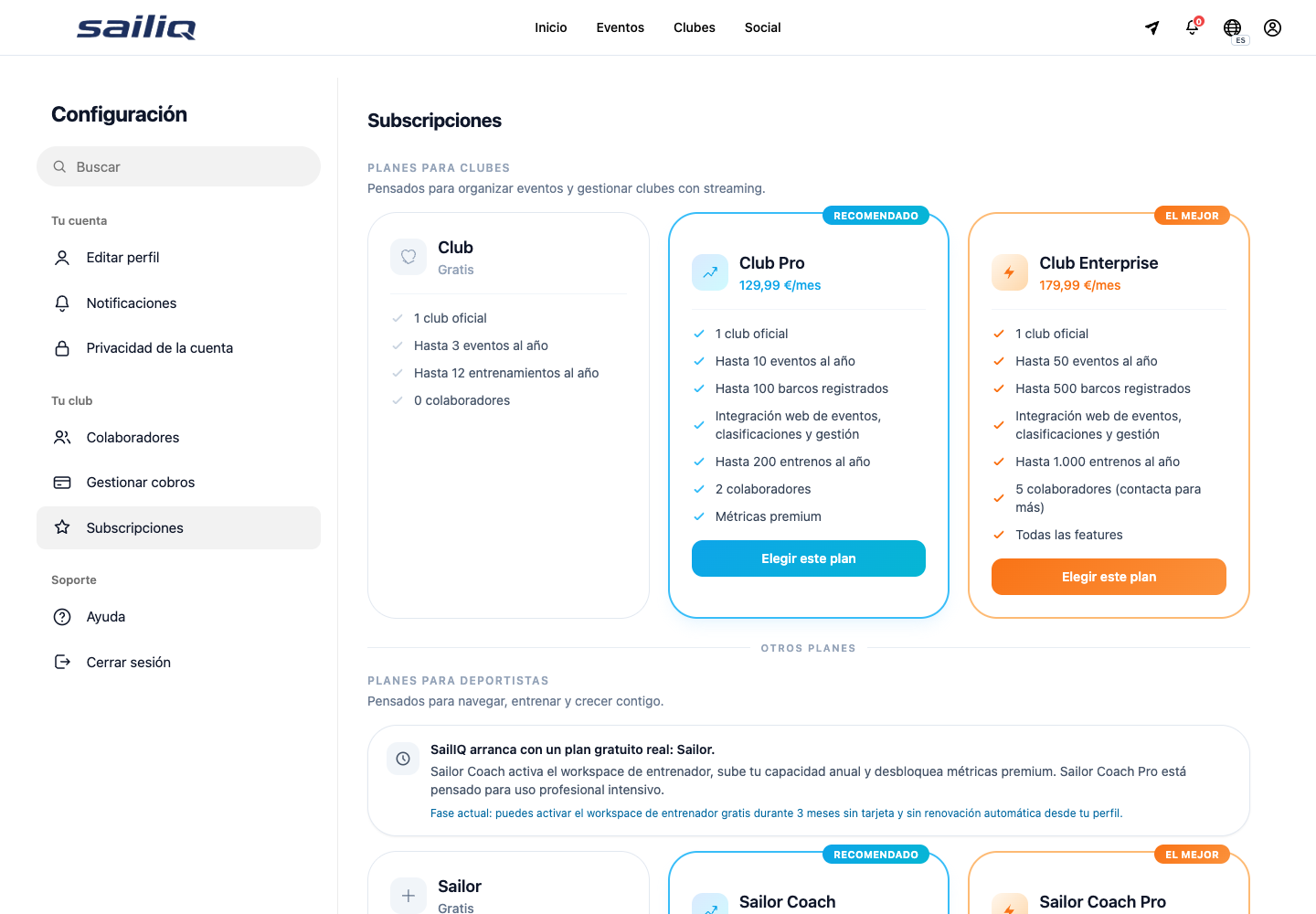
Check the limit affecting the task and, if you will charge registrations, configure and verify payment before publishing.

When it ends

The club knows the applicable limit and avoids opening payments without verified configuration.

Who it is for:
Owner
If something does not show up:

A limit does not remove existing data or permissions: it shows a recoverable option in the dashboard.

Open the club dashboard
Plan and payments

13Help

Troubleshooting

  1. Check the account, verification and invitation status
  2. Then describe the problem to support without including passwords or tokens
When it ends

The issue reaches support with the minimum context needed to help.

Who it is for:
Whole team
Availability:
Web, iOS and Android: use the same account email to recover context.
If something does not show up:

If you cannot sign in or the network fails, do not create another account: use recovery or contact support.

Create my club

The first step is very simple.

Create your club in a few minutes and come back to any guide whenever you need it.